And it only takes 5 minutes.
You probably spend hours each week exporting reports from Google Ads, pasting data into spreadsheets and manually searching for optimisation opportunities. By the time you've finished analysing the previous week's data, your campaigns have already moved on.
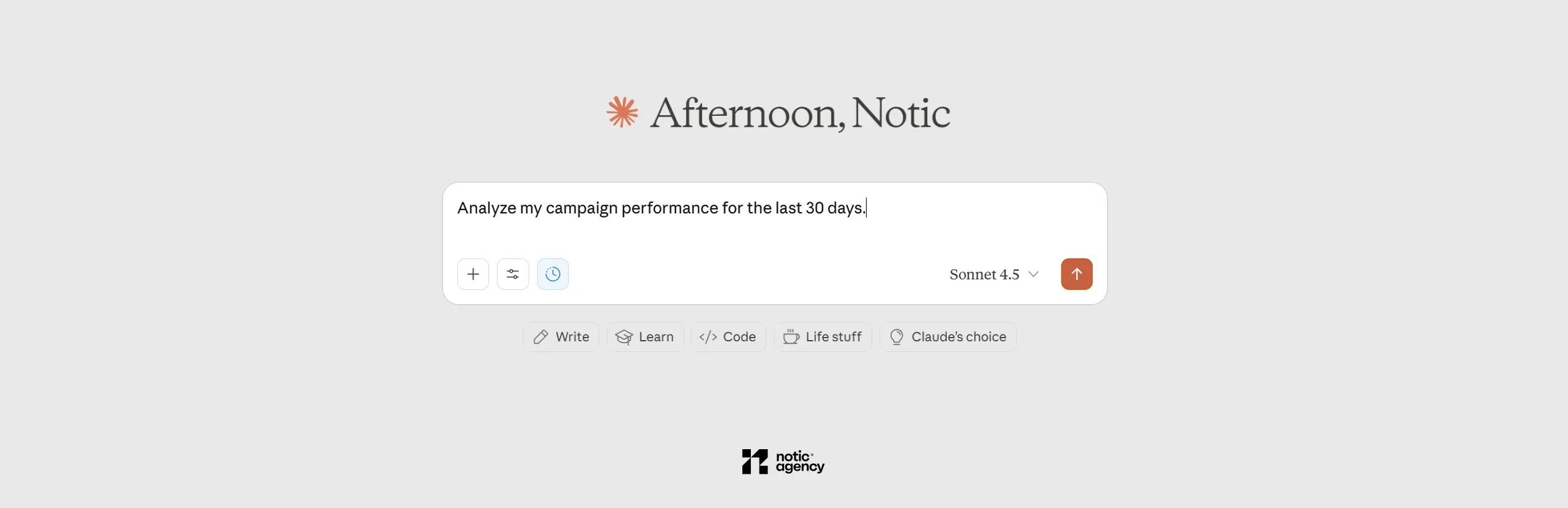
With MCP, the process is much simpler. You connect your Google Ads account directly to Claude AI and simply ask it questions such as »Which campaigns are losing this month?« Claude accesses your account, retrieves the data and gives you clear, specific answers.
It takes about 5 minutes to set up, requires no technical knowledge and turns Claude into your personal marketing analyst.
What you'll need:
Most AI tools are just smart chatbots. They can write content, answer questions and help you think about strategy. But they can't access your data.
MCP (Model Context Protocol) is different. It creates a direct link between Claude and your Google Ads account, so AI can actually access your campaigns, get performance data and analyse what's happening in real time.
The difference is huge.
Instead of asking Claude “How do I find low-performing keywords?” and get general instructions, ask him “What are my low-performing keywords?” Claude shows you the actual list from your account with conversion rates, spend data and specific recommendations.
You stop being a data analyst and Claude becomes your marketing analyst. He takes care of data extraction, pattern recognition and initial analysis. You focus on decisions and implementation.
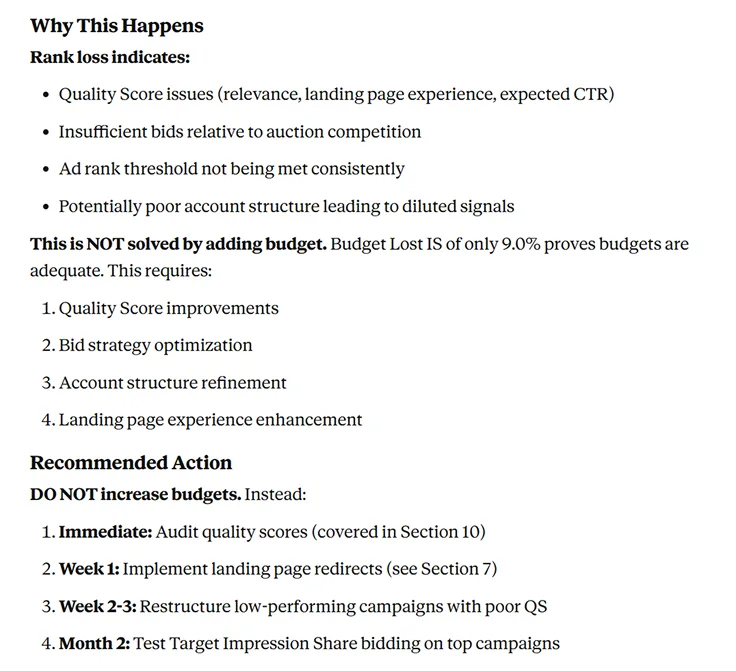
Here are some examples of how to use Google MCP with Claude AI in your daily workflow:
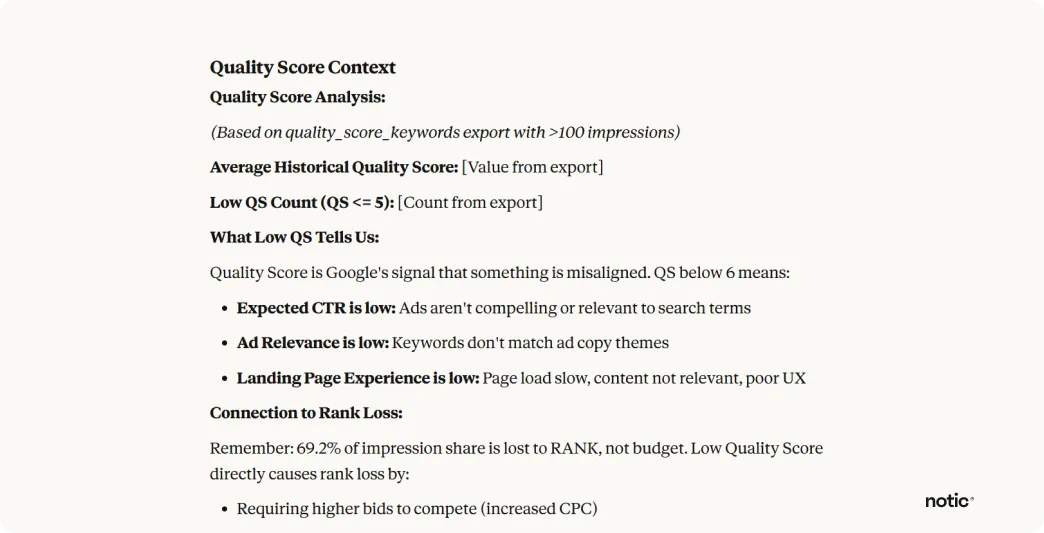
Ask Claude to identify quick optimisation opportunities after reviewing the whole account.
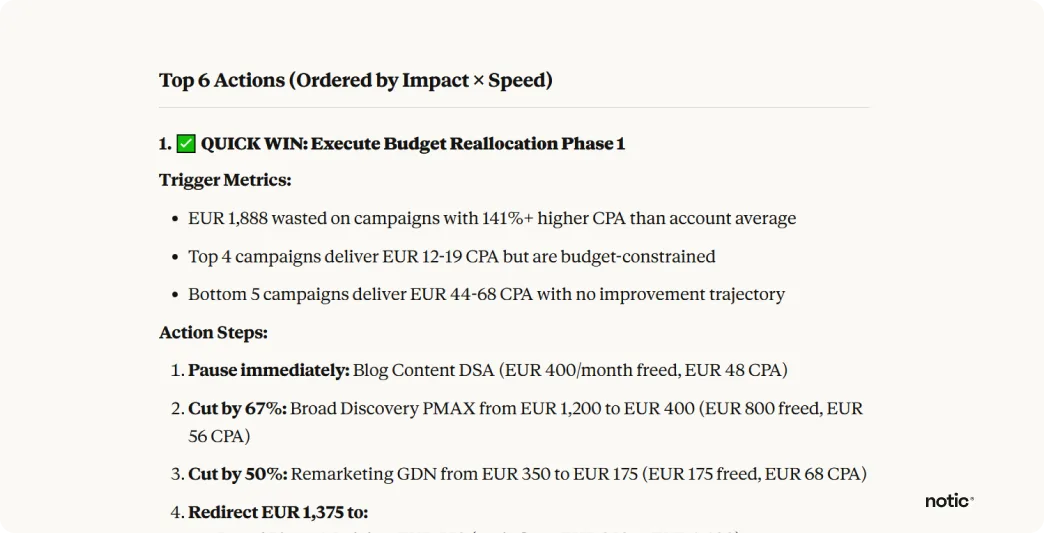
Instead of waiting for the weekly reports, simply ask Claude what happened yesterday. Which campaigns showed the biggest growth? Which keywords brought conversions? Where did you spend your budget? You'll get the answers instantly, based on real data from your account.
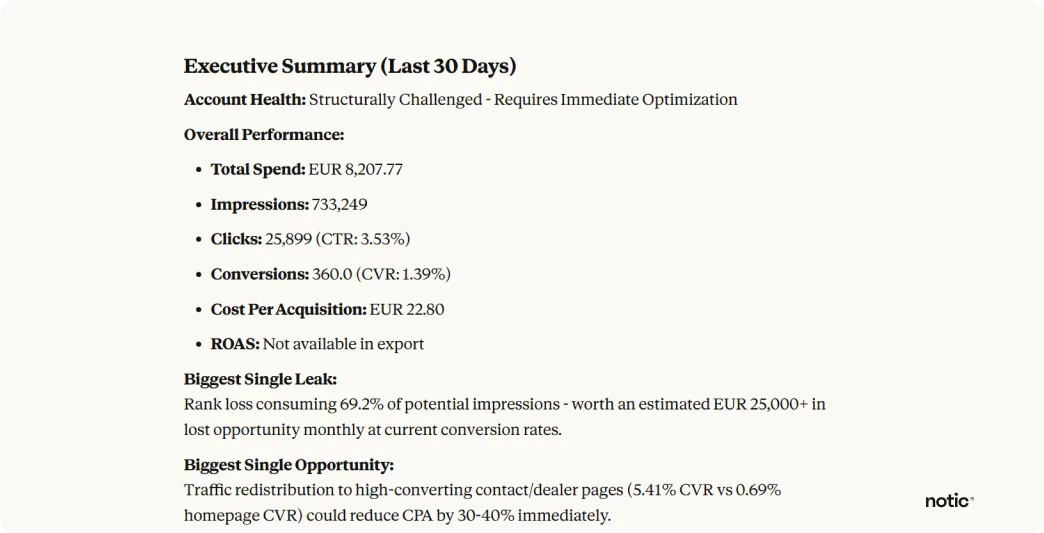
Ask Claude to compare the cost per conversion between campaigns and recommend a reallocation strategy. He analyses the whole account and tells you exactly where to move the budget for better ROI.
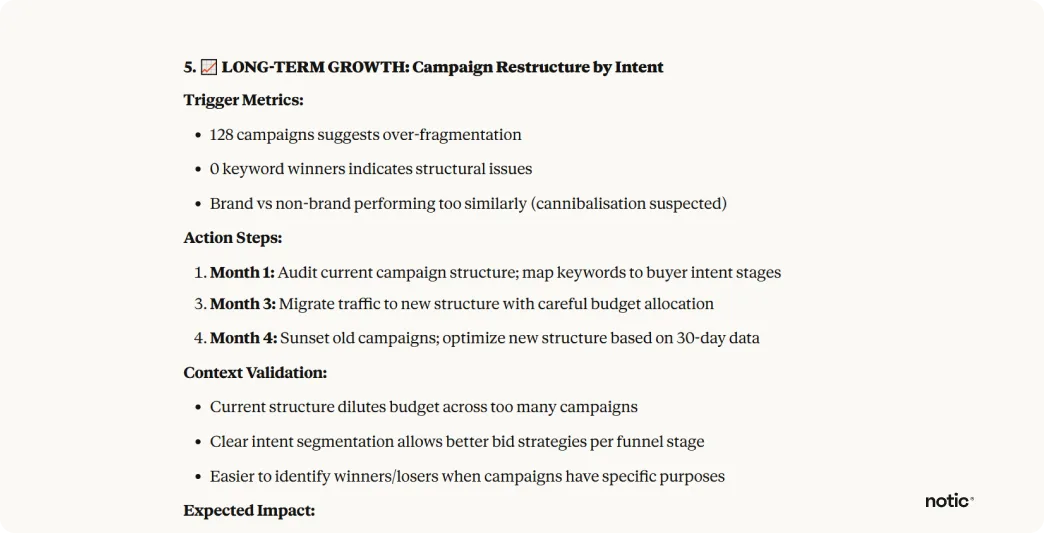
Ask Claude to review the structure of the campaigns, the performance of the keywords or the effectiveness of the ad texts. He looks at everything and finds problems that you might have manually overlooked. What used to take half a day now takes 5 minutes.
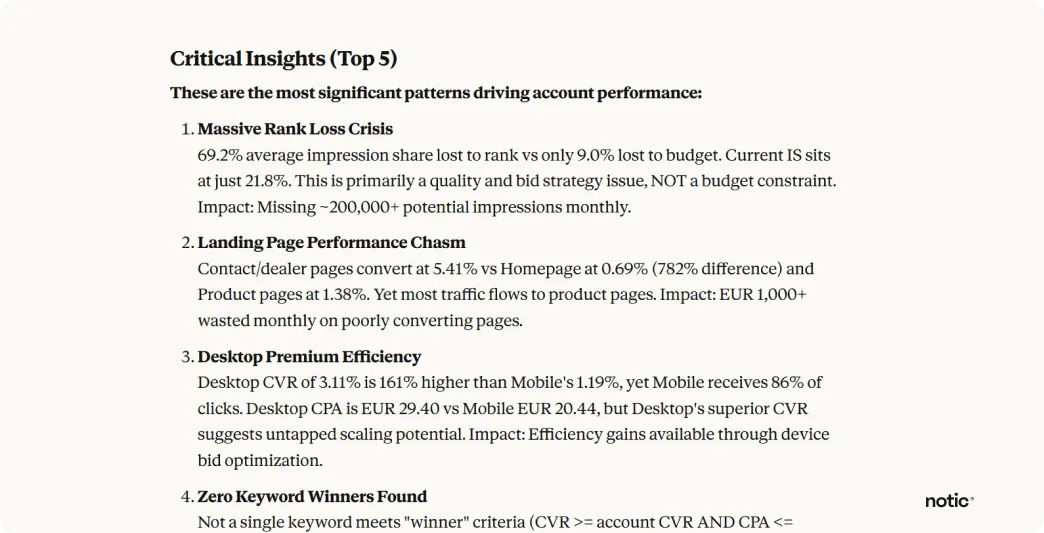
Instead of reviewing keywords manually, one by one, ask Claude to analyse the link between keyword relevance, ad text performance and landing page experience. He'll uncover optimisation opportunities that you wouldn't have spotted with individual campaign reviews.
We identify problems, look for opportunities for improvement and implement them using proven methods. It's no coincidence that 95 % of our customers stay with us.
When you use ChatGPT to help you with Google Ads, you get general advice based on their prior knowledge. AI has no insight into your account, your campaigns or actual performance data.
With the MCP connection, Claude sees everything. The structure of your campaigns, how your keywords are performing, the text of your ads, search terms, conversions, budget allocation, quality scores - absolutely everything. That's the key difference at the moment.
What this looks like in practice:
Knowledge of the advertising account
You must manually copy and paste the data from Google Ads into the conversation.
See your entire account structure, campaigns, keywords and results history.
Access to data
Manual export or copying is required.
Claude retrieves your account details immediately.
Recommendations
General advice that applies to everyone, without any depth.
Concrete actions based on the actual data in your advertising account.
Variations of advertisements
30 to 60 minutes to export data and explain the context to obtain advice
30 seconds. Ask a question and get an answer based on your current account information.
Data timeliness
The data may be days or weeks old when you analyse it.
Analysis of yesterday's results or today's spending.
Inter-campaign data
Requires manual merging of data from multiple exports and interpretation of links.
Automatically identifies links between campaigns, ad groups and keywords in your account.
You won't believe it, but it's possible. Get to know us and how we approach working with clients in our boutique digital agency.
Although it sounds complicated, the process is very simple. You link two accounts via Zapier and that's it. You don't need any programming or special technical knowledge
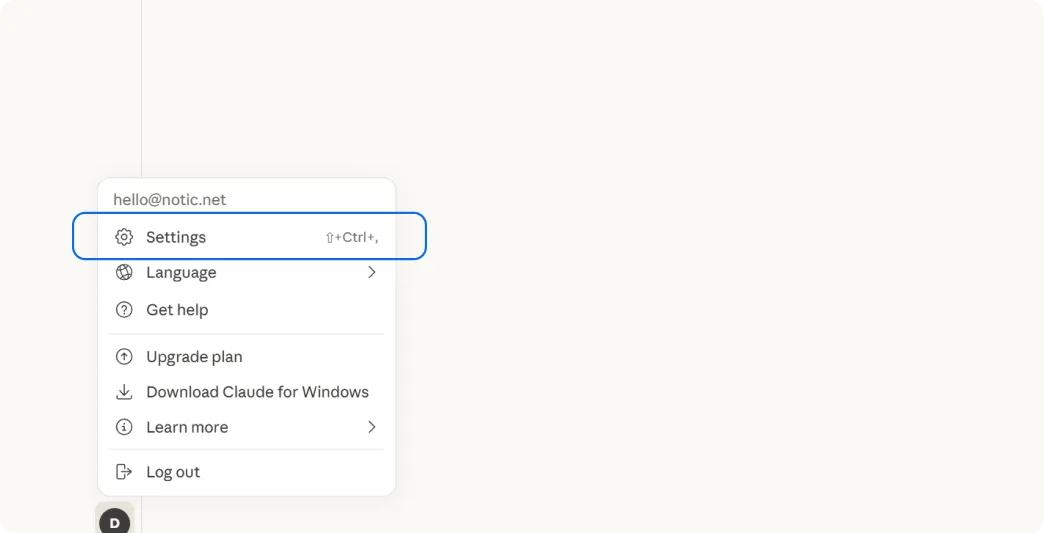
Open Claude in your browser. Click on your name in the bottom left, then go to Settings and select the Connectors tab.
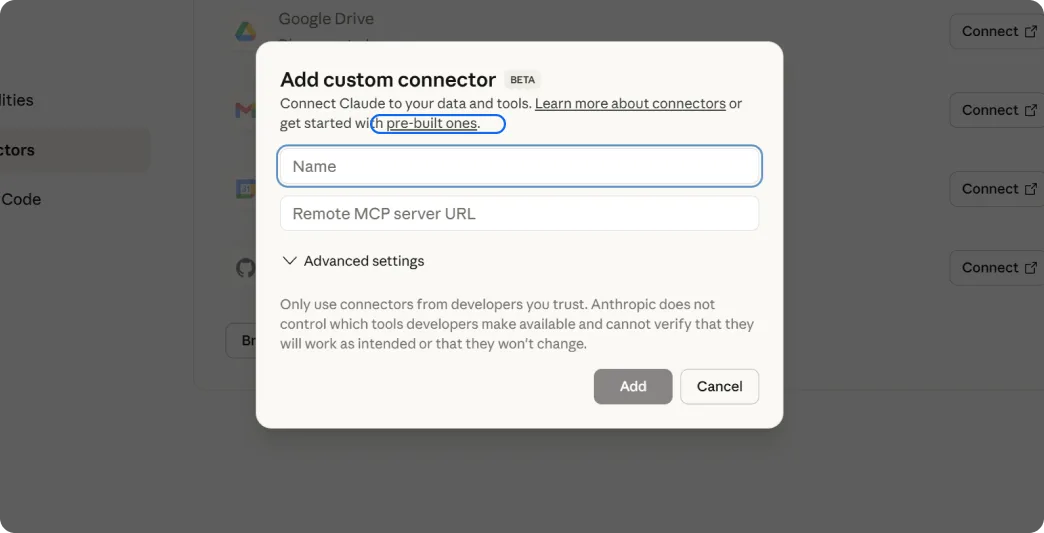
Find the “Add custom connector” button and click it. Then click on the “pre-built ones” link. A list of available MCP integrations will open.
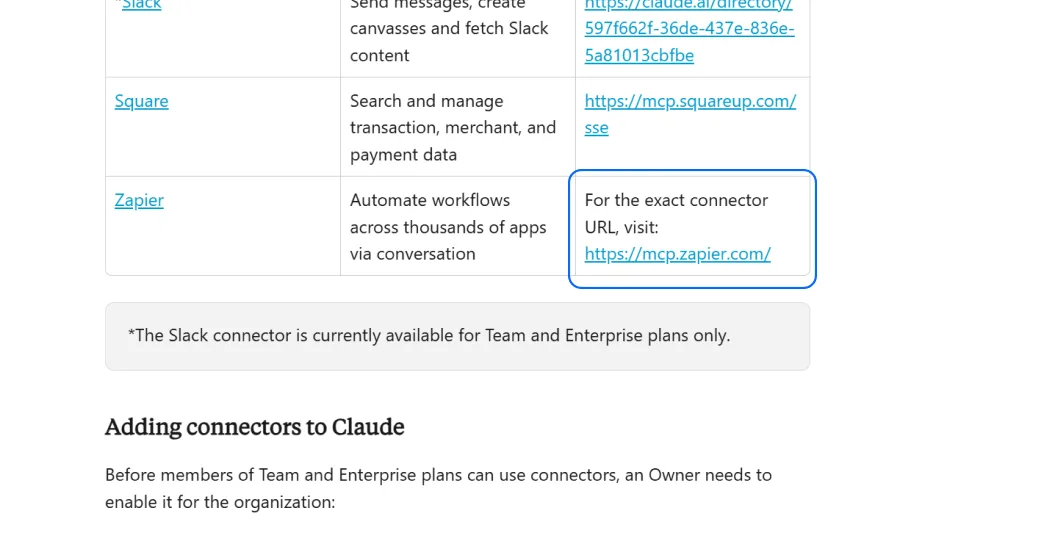
Scroll down until you find Zapier. Open mcp.zapier.com.
Click “New MCP Server” and select Claude as your AI assistant. Create a server and name it clearly, for example “Google Ads MCP Server”, so you know what it's for.
Then click “Add tools” and search for Google Ads in the tools directory. Select the Google Ads API to give Claude full access to your account details.
Follow the instructions to authenticate your Google Ads account. This is a standard OAuth process, the same as for any other tool you connect to Google Ads.
Once the account is linked, you will see it as active in Zapier. Check that all API points are properly enabled.
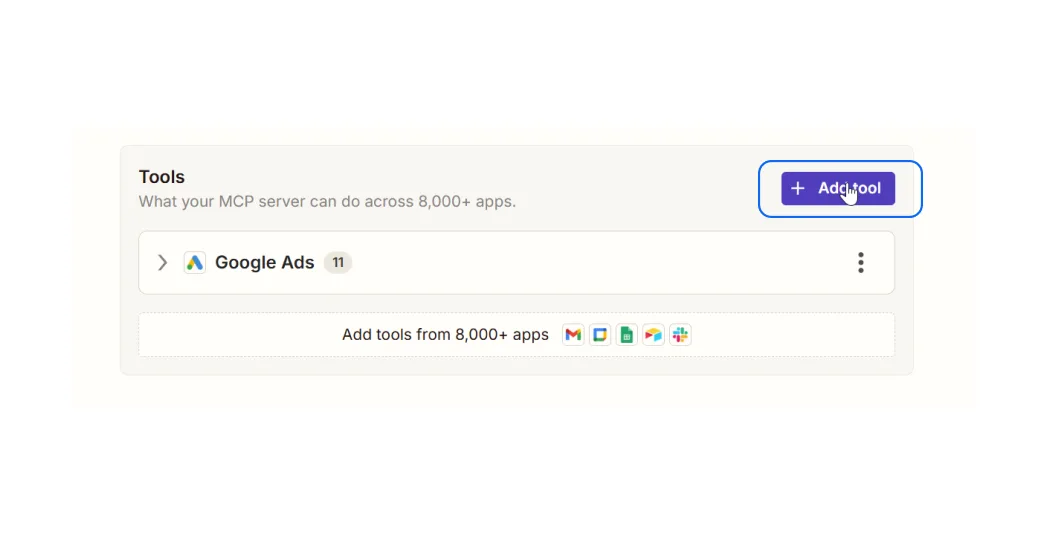
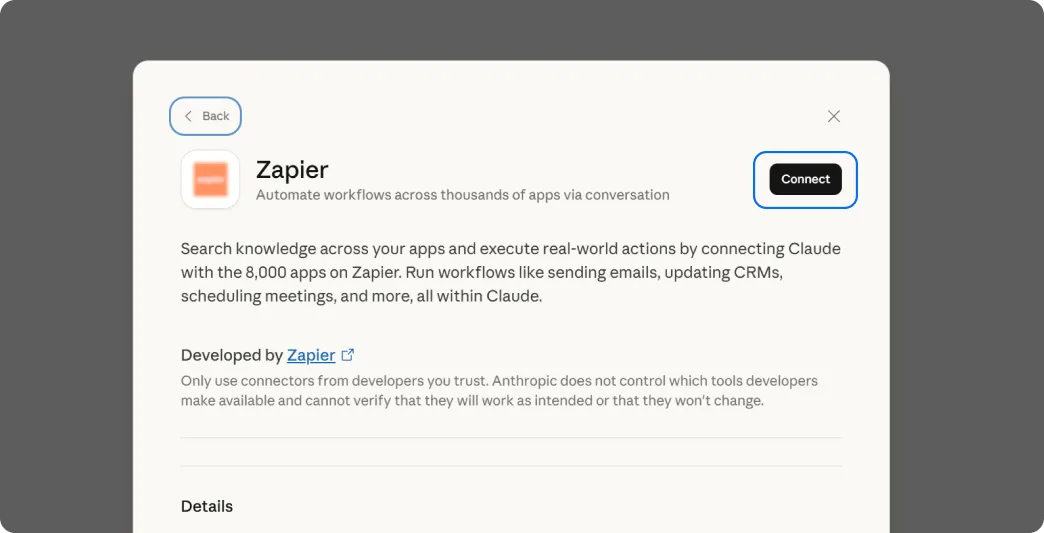
Open Zapier and click on “Configure” above. There you will find the Integration URL - copy it.
Go back to Claude (claude.ai/settings/integrations) and add the new integration. Paste the URL you copied from Zapier. Confirm the link and grant access.
That's it. Google Ads should now be active in Claude, and Zapier should appear among the active linkers.
Open a new chat with Claude. Ask him something simple to check if everything is working:
“How many active campaigns do I have in my Google Ads account?”
If Claude answers with the correct number, the connection works. Now try something more useful.
Examples of good questions:
Campaign performance: “Which campaigns have declined in the last month and how can I improve them?”
Keyword analysis: “Which keywords spend a lot of money but don't convert?”
Budget optimisation: “Compare the cost per conversion between campaigns and tell me where to move the budget”.”
Ad testing: “Which ad texts work best in my account?”
Search terms: “Which search terms trigger ads but don't deliver results? Give me a list of negative words.”
Quality Score: “Which keywords have a poor quality score and how do I fix them?”
Competition: “Where do my competitors beat me in ad impressions?”
The more precise your questions, the better the answers.
Instead of asking “How does the account work?”, ask “Which ad groups have a CTR below 5% and why?”
MCP in Claude save you hours of manual analysis, while strategy, budget, and creative decisions remain yours. At this point, companies typically weigh two paths. The first is hiring an in-house advertising specialist, whom you can find among job listings. The second is collaborating with an agency, where multiple people with different specializations stand behind the same account. With smaller advertising budgets, hiring in-house is often not worthwhile, as a single person has to cover strategy, analytics, and creatives all at once.
Probably you
Also interested in:
Probably you
Also interested in: